4 min bacaan
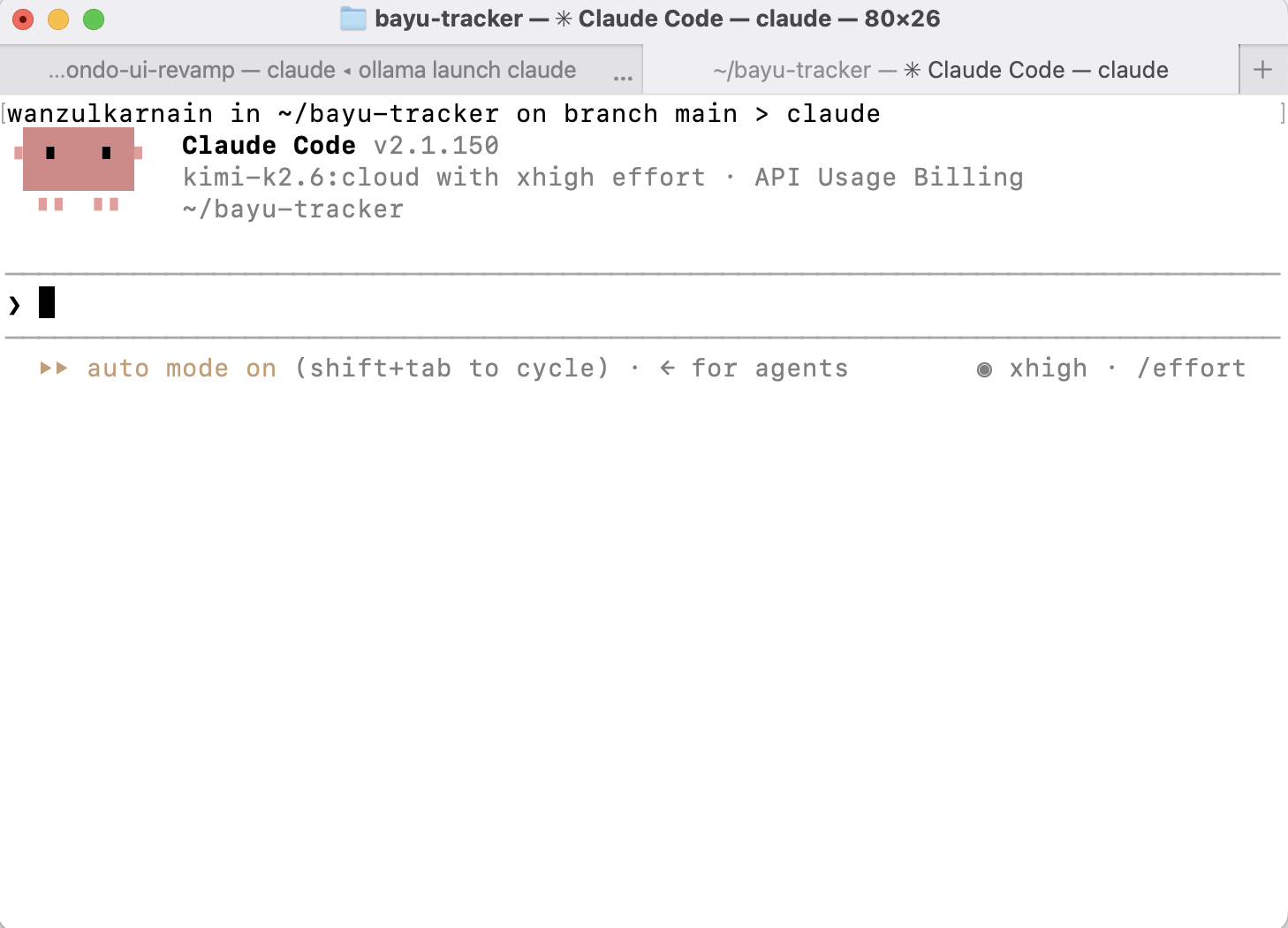
If you have been following my blog, you know I am always on the lookout for ways to simplify my development workflow. I recently wanted to try the Claude Code CLI tool, but I did not want to deal with a local Ollama installation or pay for Anthropic’s API. The good news? If you already have an Ollama Cloud API key, you can run Claude Code entirely through the cloud. No local models. No heavy setup.
The Problem
By default, the Claude Code CLI expects an ANTHROPIC_API_KEY. That means either signing up for Anthropic’s paid API or running Ollama locally — which eats up RAM and disk space. I already had an Ollama Cloud account with an API key, so I figured there had to be a way to route Claude Code through Ollama Cloud instead.
Turns out, there is. Ollama Cloud exposes an API-compatible endpoint, but it uses a slightly different authentication model. You need to point Claude Code to the right base URL and swap the auth token.
The One-Liner Command
Here is the exact command I use to launch Claude Code with Ollama Cloud:
ANTHROPIC_BASE_URL="https://ollama.com" \
    ANTHROPIC_AUTH_TOKEN="$OLLAMA_API_KEY" \
    ANTHROPIC_API_KEY="" \
    ANTHROPIC_MODEL="kimi-k2.6:cloud" \
    claude
Let me break down what each variable does:
ANTHROPIC_BASE_URL— Points Claude Code to Ollama Cloud instead of Anthropic’s servers.ANTHROPIC_AUTH_TOKEN— Your Ollama Cloud API key. I reuse my existing$OLLAMA_API_KEYenv var here.ANTHROPIC_API_KEY=""— Critical. You must explicitly set this to an empty string. If you leave it unset, Claude Code will still try to use your default Anthropic key and ignore Ollama Cloud.ANTHROPIC_MODEL— The model slug. I have tested a few, andkimi-k2.6:cloudis the best performer so far for coding tasks.
Permanent Setup in .zshrc
Typing that long command every time is annoying. The fix is simple — add the exports to your ~/.zshrc so claude just works when you open a terminal.
Here is what I added to mine:
export ANTHROPIC_BASE_URL="https://ollama.com"
export ANTHROPIC_AUTH_TOKEN="$OLLAMA_API_KEY"
export ANTHROPIC_API_KEY=""
export ANTHROPIC_MODEL="kimi-k2.6:cloud"
Note: This assumes you already have OLLAMA_API_KEY exported somewhere in your .zshrc. If not, add that too:
export OLLAMA_API_KEY="your-ollama-cloud-api-key-here"After saving, run source ~/.zshrc or restart your terminal. From then on, just type claude and you are good to go.
Why kimi-k2.6:cloud?
I have tested multiple models on Ollama Cloud, and kimi-k2.6:cloud stands out. It handles code generation, debugging, and refactoring better than the others I tried. Fast, accurate, and reliable. If you find a better one, let me know — I am always happy to switch if something beats it.
Troubleshooting
Here are a few issues I ran into and how to fix them:
- Claude still asks for
ANTHROPIC_API_KEY→ Make sureANTHROPIC_API_KEY=""is explicitly set to an empty string. Omitting it is not enough — Claude Code will fall back to looking for a real Anthropic key. - “Model not found” error → Double-check the model slug. Log into your Ollama Cloud dashboard and confirm the exact name. It must be
kimi-k2.6:cloud— no typos, no extra spaces. - “401 Unauthorized” → Your
OLLAMA_API_KEYmay have expired or been revoked. Head to your Ollama Cloud settings and regenerate it.
Conclusion
This setup is clean. No local Ollama bloat, no Anthropic API bills, and kimi-k2.6:cloud handles coding tasks like a champ. If you are already on Ollama Cloud, this is the fastest way to get Claude Code CLI running.
Have you found a better model or a smoother setup? Drop a comment — I would love to hear what works for you.
Leave a Reply
You must be logged in to post a comment.